TeensBeginner
Digital Skills for School
Files, docs, spreadsheets, research, citations and staying safe online
Technology & Programming1 h 50 min11 lessonsCertificate
Hardware, files, the internet, email and staying safe, from zero
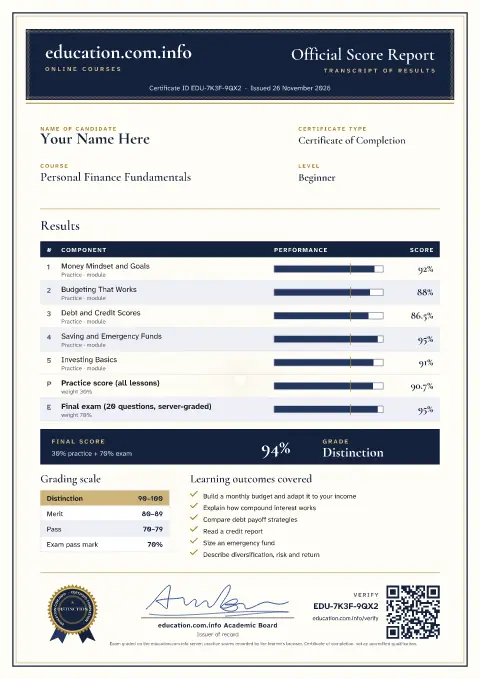

Finish the 12 lessons (about 2 h) and pass the 20-question final exam. Your Certificate of Completion is ready the moment you pass.
Computers run almost every part of modern life: job applications, banking, doctor's appointments, school forms, photos of the grandkids. Yet many people were never shown how a computer actually works. They learned a few clicks by watching someone else and hope nothing unexpected pops up. This free course fills in the missing foundation in one sitting.
You'll start inside the machine. You'll learn what the processor, memory and storage each do, why a laptop with more RAM feels faster, what gigabytes really measure, and how the operating system sits between you and the hardware. Then you'll get hands-on with the desktop: windows, the mouse, the keyboard and the shortcuts that save experienced users hours every week.
Next comes the skill that causes the most frustration: files and folders. You'll learn where downloads go, how to name and organize files so you can find them again, what file extensions mean and how to recover something you deleted by mistake.
The third module takes you online. You'll see how Wi-Fi, routers and web addresses fit together, how to search the web like a researcher, and how to write, reply to and organize email without embarrassing mistakes such as an accidental Reply All.
Finally, you'll protect yourself. You'll build strong passphrases, turn on two-factor authentication, spot phishing messages and fake support calls, and set up backups so a broken laptop never costs you your photos or documents.
The course is for adults who are new to computers, returning after a long break, or self-taught with gaps. Examples cover Windows and Mac, and the ideas carry over to Chromebooks and Linux. Every lesson mixes short explanations with quick checks and real-world scenarios, and you can earn a free certificate of completion by passing the final exam.
What a computer actually does, the parts that do it, and the software that brings the hardware to life.
Get comfortable with the desktop, windows, mouse and keyboard, the shortcuts that save time, and files and folders you can always find again.
Connect to the internet, read web addresses, search like a researcher and handle email confidently and politely.
Protect your accounts with strong passphrases and two-factor authentication, recognize scams, and back up and maintain your computer.
20 questions drawn from a pool of 34. Score 70% or more to pass; retakes get a fresh set of questions.
If a program keeps freezing, the most likely cause is a hardware failure, so the computer needs repair.
True or false?
Answer: False
Freezing is usually a software problem: a bug, too many programs open or an update that did not finish. Closing the program, restarting the computer and installing updates fix most cases. Hardware is a suspect only when problems continue across many programs or after obvious physical damage.
It helps but is not required. Every lesson works on its own. If you can, keep a computer open beside the course and try each shortcut, folder trick or setting as you read about it, because doing it once is worth reading about it five times.
Both. The ideas are the same on every system: files, folders, windows, browsers, email and security. Where the steps differ, the course shows both, such as Ctrl on Windows and Command on Mac. Chromebooks and Linux follow the same patterns.
For everyday use (web, email, documents, video calls) about 8 GB of RAM and a 256 GB solid-state drive are a comfortable starting point. Photo and video editing, gaming or heavy multitasking benefit from 16 GB or more of RAM and larger storage.
Very rarely. Most mistakes can be undone with Ctrl+Z (Command+Z on Mac), the Recycle Bin or Trash, or simply closing a window. The real risks come from scams and malicious downloads, which the last module teaches you to spot.
Windows and macOS include built-in protection that is good enough for most home users, as long as you keep the system updated. Safe habits, such as not opening unexpected attachments and installing apps only from trusted sources, matter more than which product you use.
The internet is the global network of connected computers and the cables, radio links and routers between them. The web is one service that runs on it: pages you open in a browser. Email, video calls and app updates also use the internet without being web pages.
No. It's a certificate of completion showing you finished the lessons and passed the exam. It's a good way to show employers or family that you built these skills, but it isn't a formal academic credential.
Files, docs, spreadsheets, research, citations and staying safe online
Technology & ProgrammingPeek inside the machine: parts, binary, programs and the internet
Technology & ProgrammingHome row, finger zones and good habits for fast, accurate typing
Technology & ProgrammingBinary, hardware, algorithms, code and the internet: the ideas behind every computer
Technology & ProgrammingVariables, functions, arrays, objects, the DOM and async code
Technology & ProgrammingIP addresses, subnets, TCP/IP, DNS, Wi-Fi and troubleshooting explained
Technology & Programming