Adults & professionalsIntermediate
Excel Formulas and Functions
Logic, lookups, conditional math, text, dates and dynamic arrays
Technology & Programming2 h 20 min12 lessonsCertificate
Formulas, lookups, tables, PivotTables and charts from zero to confident
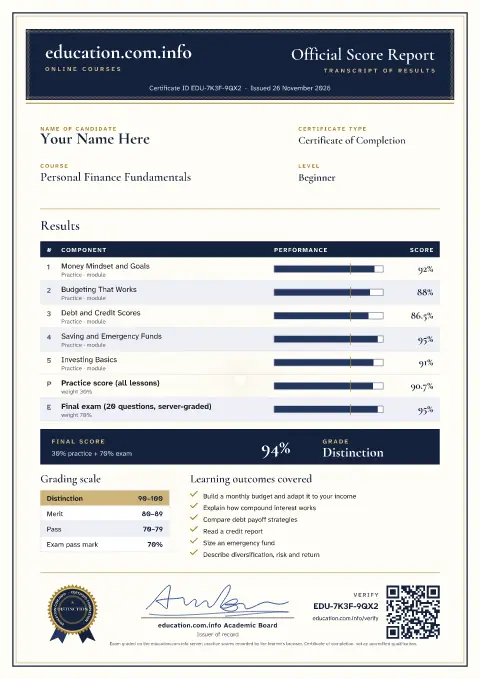

Finish the 12 lessons (about 2 h 10 min) and pass the 20-question final exam. Your Certificate of Completion is ready the moment you pass.
Excel is the tool that quietly runs a huge share of the working world: budgets, sales reports, schedules, inventories, grade books and guest lists. Most people learn it in fragments, copying a formula from a coworker and hoping nothing breaks. This free course gives you the foundation in one sitting, so you understand why a spreadsheet works instead of just following clicks.
You'll start with the layout of a workbook: cells, ranges, references and the difference between what a cell shows and what it actually contains. Then you'll write formulas, use the essential functions (SUM, AVERAGE, COUNT, MIN, MAX, ROUND) and master the idea that trips up almost every beginner: relative versus absolute references and the dollar sign.
Next you'll make spreadsheets think. You'll write IF tests, combine conditions with AND and OR, count and add with COUNTIF and SUMIFS, and pull data from one table into another with XLOOKUP and VLOOKUP, including how to fix the dreaded #N/A.
In the final modules you'll organize data the way professionals do: sorting, filtering, Excel Tables, cleaning messy text and working with dates. Then you'll summarize thousands of rows in seconds with a PivotTable and present results with the right chart and conditional formatting.
The course is for complete beginners and for self-taught users who want to fill gaps. It uses current Microsoft 365 Excel, and notes where older versions differ. Most lessons also apply to Google Sheets. Every lesson mixes short explanations with worked examples, mini calculators and quick checks, and you can earn a free certificate of completion by passing the final exam.
Learn how a workbook is organized, how cells and ranges are addressed, and how Excel stores numbers, text and dates behind what you see.
Write formulas that update themselves, use the essential functions, and copy formulas safely with relative, absolute and mixed references.
Make spreadsheets decide with IF, AND and OR, count and add with conditions, and pull matching data from other tables with XLOOKUP and VLOOKUP.
Sort and filter safely, turn ranges into Excel Tables, prevent bad entries, and clean up messy text and dates with functions.
Summarize thousands of rows with PivotTables, choose charts that tell the truth, and highlight what matters with conditional formatting.
20 questions drawn from a pool of 34. Score 70% or more to pass; retakes get a fresh set of questions.
A cell that displays 7% stores the value 7.
True or false?
Answer: False
Percent format multiplies the stored value by 100 only for display. The cell stores 0.07. That is why typing 7 into a cell already formatted as Percent can show 700% in some setups: Excel stores what you typed and then displays it times 100.
=B2*C2.No. Everything except a few newer functions works in Excel 2016 and later, and almost all of it works in Google Sheets. XLOOKUP and IFS need Excel 2021, Microsoft 365 or Excel for the web; the course shows the older VLOOKUP and nested IF alternatives too.
A formula is anything you type that starts with an equals sign, such as =B2*C2. A function is a named, built-in calculation you can use inside a formula, such as SUM or IF. =SUM(B2:B10)*1.08 is one formula that uses one function.
It locks part of the reference when you copy the formula. $B$1 always points to B1, B$1 keeps the row fixed, and $B1 keeps the column fixed. Press F4 (Fn+F4 on many laptops, Cmd+T on a Mac) while editing a reference to cycle through the options.
Learn XLOOKUP if your version has it: it is simpler and safer, defaults to exact match and can look left. Still understand VLOOKUP, because you will meet it in older files and shared workbooks for years.
The fundamentals in this course take a couple of hours to learn and a few weeks of regular use to feel natural. Advanced topics such as Power Query, dynamic arrays and macros build on exactly these basics.
No. It is a certificate of completion showing you finished the lessons and passed the exam. It is useful evidence of initiative, but it is not the official Microsoft Office Specialist certification.
Logic, lookups, conditional math, text, dates and dynamic arrays
Technology & ProgrammingFormulas, functions, charts and sharing in Google's free spreadsheet
Technology & ProgrammingPlan, design and deliver slides people remember
Technology & ProgrammingVariables, functions, arrays, objects, the DOM and async code
Technology & ProgrammingHardware, files, the internet, email and staying safe, from zero
Technology & ProgrammingWrite real programs with variables, loops, lists, dictionaries and functions
Technology & ProgrammingCookies on education.com.info
We use necessary storage to save your course progress on this device. With your permission we also use analytics and advertising cookies.