Adults & professionalsBeginner
Excel Fundamentals
Formulas, lookups, tables, PivotTables and charts from zero to confident
Technology & Programming2 h 10 min12 lessonsCertificate
Formulas, functions, charts and sharing in Google's free spreadsheet
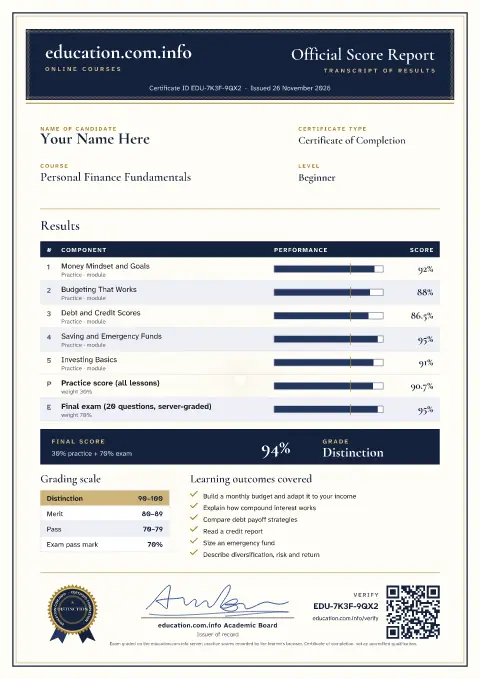

Finish the 12 lessons (about 2 h 10 min) and pass the 20-question final exam. Your Certificate of Completion is ready the moment you pass.
Google Sheets is a free spreadsheet that runs in your browser, saves itself every few seconds and lets several people edit the same file at once. Teams use it for budgets, schedules, inventories and sign-up sheets; families use it for chore charts and trip costs; small businesses run surprisingly large parts of their operations on it. This free course takes you from a blank grid to confident everyday use in one sitting.
You'll start with the basics: creating a spreadsheet, moving around cells, rows, columns and tabs, and entering numbers, text and dates so Sheets understands them. You'll format data so it's easy to read, freeze header rows and fill long series in a second with autofill.
Then you'll learn the skill that makes spreadsheets powerful: formulas. You'll write calculations with cell references, use essential functions such as SUM, AVERAGE, COUNT and ROUND, and understand the difference between relative and absolute references, the concept that trips up most beginners.
The third module covers decisions and lookups: IF, COUNTIF and SUMIF, VLOOKUP and XLOOKUP, error messages and how to fix them, plus sorting, filtering, dropdown lists and cleaning up messy data. You'll also meet functions that are special to Google Sheets, such as FILTER, UNIQUE and IMPORTRANGE.
Finally, you'll turn data into answers with charts, conditional formatting and pivot tables, and learn how to share a spreadsheet safely with the right permissions, comments and version history.
The course is for anyone who is new to spreadsheets or has used Sheets only for simple lists. You only need a free Google account and a browser. Every lesson includes worked examples with real numbers, live calculators and quick checks, and you can earn a free certificate of completion by passing the final exam. Most skills carry over directly to Microsoft Excel.
Create your first spreadsheet, learn to move around the grid, and enter and format data so Sheets understands it.
Write formulas with cell references, use the essential functions, and copy formulas correctly with relative and absolute references.
Make decisions with IF, summarize with COUNTIF and SUMIF, look up values, fix errors, and sort, filter and clean data, including Sheets-only functions.
Turn data into answers with charts, conditional formatting and pivot tables, and share spreadsheets safely with the right people.
20 questions drawn from a pool of 34. Score 70% or more to pass; retakes get a fresh set of questions.
You want one spreadsheet for a household budget with a separate grid for each month. What is the best setup?
Answer: C. One spreadsheet with a tab for each month and a Summary tab
Tabs keep related grids in one file, so formulas on a Summary tab can total all months, and sharing or finding the budget means handling one file. Twelve files are hard to combine, and stacking everything in one column makes monthly comparisons awkward.
Yes. Anyone with a free Google account can create and share spreadsheets, and storage counts toward the free Google Drive allowance shared with Gmail and Photos. Businesses and schools often use paid Google Workspace plans, which add admin controls and more storage, but the spreadsheet features covered here work the same.
Both use the same grid, formulas and most of the same functions. Sheets runs in a browser, saves automatically and is built for real-time collaboration. Excel has more advanced analysis features and handles very large files better. Skills from this course transfer to Excel with only small differences.
Yes, with setup. In Google Drive settings you can turn on offline access, and on a computer this works in the Chrome or Edge browser with the Google Docs Offline extension. Changes sync when you reconnect. Turn it on before you need it, while you still have an internet connection.
Yes. Upload an .xlsx file to Google Drive and open it with Google Sheets. You can edit it in Excel format or convert it to a Google Sheets file with File > Save as Google Sheets. You can also download any Google spreadsheet as an Excel file via File > Download.
Function separators follow the spreadsheet's locale. In the US and many other regions Sheets uses commas, as in =IF(A1>10,"High","Low"). In locales that use a comma as the decimal mark, Sheets uses semicolons. You can see the locale in File > Settings.
Use version history (File > Version history > See version history). It shows earlier versions with who changed what, and you can restore a previous version or copy values from it. For individual cells, right-click and choose Show edit history.
No. It is a certificate of completion showing you finished the lessons and passed the exam. It's a useful way to show initiative, but it isn't an official Google certification or an academic credential.
Formulas, lookups, tables, PivotTables and charts from zero to confident
Technology & ProgrammingLogic, lookups, conditional math, text, dates and dynamic arrays
Technology & ProgrammingPlan, design and deliver slides people remember
Technology & ProgrammingHardware, files, the internet, email and staying safe, from zero
Technology & ProgrammingVariables, functions, arrays, objects, the DOM and async code
Technology & ProgrammingWrite real programs with variables, loops, lists, dictionaries and functions
Technology & Programming