Adults & professionalsBeginner
Excel Fundamentals
Formulas, lookups, tables, PivotTables and charts from zero to confident
Technology & Programming2 h 10 min12 lessonsCertificate
Plan, design and deliver slides people remember
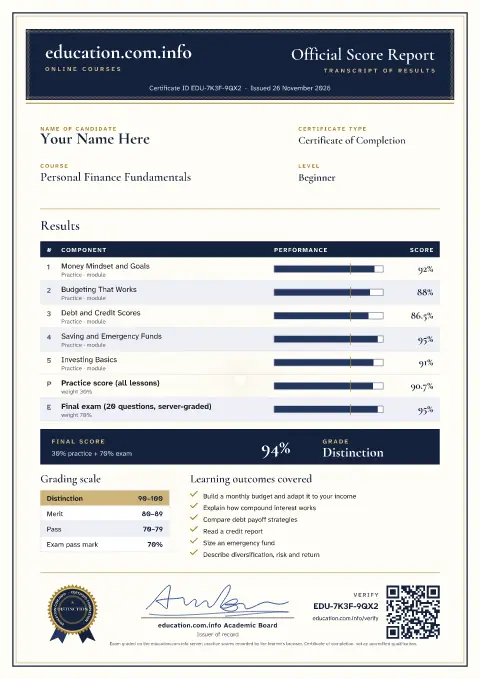

Finish the 11 lessons (about 2 h) and pass the 20-question final exam. Your Certificate of Completion is ready the moment you pass.
Most presentations fail before the first slide appears. The speaker opened PowerPoint, picked a template and started typing bullet points, and the audience got a document read aloud from a wall. This free course teaches you to build presentations that work: people understand them, remember them and act on them.
You'll start away from the software. You'll define your audience and your one key message, then shape it into a simple story with a strong opening, a clear middle and a closing that tells people what to do next. You'll learn how many slides a talk really needs and how to plan your timing.
Then you'll get practical with PowerPoint itself: the ribbon, layouts and placeholders, views, themes and the Slide Master, which keeps every slide consistent and saves hours of fiddling. You'll write slide titles that make a point, cut text down to what the audience can absorb and choose fonts and sizes that people at the back of the room can actually read.
The design module covers images, icons, charts and the core principles of contrast, alignment, repetition and white space, plus accessibility features such as alt text and the Accessibility Checker, so every slide works for every viewer.
Finally, you'll deliver. You'll use transitions and animations with restraint, write speaker notes, rehearse with Presenter View and built-in coaching tools, handle nerves and questions, and share your deck as a PDF or in a video meeting without technical surprises.
The course is for students, professionals, teachers and anyone who presents, from a five-minute team update to a conference talk. Examples use Microsoft PowerPoint for Windows and Mac, and the design and delivery skills apply equally to Google Slides and Keynote. Every lesson includes worked examples, before-and-after comparisons and quick checks, and you can earn a free certificate of completion by passing the final exam.
Decide who you are talking to, what you want them to remember and do, and shape it into a simple story with the right length.
Find your way around PowerPoint, keep decks consistent with themes and the Slide Master, and write slide text people can read and remember.
Choose images, icons, charts and diagrams that carry your message, and apply design and accessibility principles so every slide is clear to everyone.
Use motion with restraint, rehearse with notes and Presenter View, handle nerves and questions, and share your deck in a room, a meeting or a file.
20 questions drawn from a pool of 36. Score 70% or more to pass; retakes get a fresh set of questions.
Which of these is the strongest key message for a presentation to a school board?
Answer: D. Extending library hours to 7 p.m. would give 400 students without home internet a place to study, for $18,000 a year
The strongest message is a specific claim with numbers and a clear ask. "Library funding" is just a topic, the overview promises no point at all and "libraries are important" is too vague for anyone to act on.
There is no fixed number. Plan from time and content: many speakers average one to two minutes per content slide, so a 10-minute talk might use 6 to 10 slides. A slide that only shows a single photo or number can go faster. Cut any slide that does not support your main message.
As a rule of thumb, keep body text at 24 points or larger and titles at 36 points or larger for a typical meeting room. If text only fits at 14 points, there is too much of it for a slide; move the detail to your speaker notes or a handout.
Avoid it. When slides show full sentences that you read aloud, people read ahead and stop listening. Put keywords and visuals on the slide and the full wording in your speaker notes, which Presenter View shows only to you.
Yes. Planning, structure, design principles and delivery are the same in every tool. Menu names differ, but Google Slides and Keynote also have themes, master layouts, speaker notes, presenter view and PDF export.
Not automatically. Most images online are protected by copyright. Use your own photos, images from PowerPoint's built-in stock library where your plan includes it, free-license sites that clearly allow reuse, or images you have permission for, and credit them as the license requires.
Nerves are normal and rarely as visible as they feel. Rehearse out loud several times, especially the first minute, arrive early to test the equipment, and focus on helping the audience rather than on yourself. A slow breath before you start helps steady your voice.
No. It is a certificate of completion showing you finished the lessons and passed the exam. It is a good way to show initiative, but it is not an official Microsoft certification or an academic credential.
Formulas, lookups, tables, PivotTables and charts from zero to confident
Technology & ProgrammingFormulas, functions, charts and sharing in Google's free spreadsheet
Technology & ProgrammingLogic, lookups, conditional math, text, dates and dynamic arrays
Technology & ProgrammingVariables, functions, arrays, objects, the DOM and async code
Technology & ProgrammingHTML, CSS and a little JavaScript, from a blank file to a site online
Technology & ProgrammingHardware, files, the internet, email and staying safe, from zero
Technology & ProgrammingCookies on education.com.info
We use necessary storage to save your course progress on this device. With your permission we also use analytics and advertising cookies.